Jira ticket integration
Kotzilla connects to Jira so a critical issue you find in the Console becomes an actionable ticket in the tool your team already works in. Detection stays in Kotzilla, the ticket lives in Jira, and the fix happens in your editor, with the same context flowing through all three.
The Console follows the ticket lifecycle, it does not manage tickets. Jira remains the source of truth: status changes, reassignments and deletions happen in Jira, and Kotzilla mirrors them read-only.
Connect Jira for your organization
An organization admin connects Jira once, from Org Settings → Integrations:
- Open the Jira card and click Connect.
- Complete the OAuth consent in Jira. If your account has several sites, pick the site to use.
- Choose a default project. New tickets are created there unless an app overrides it.
Once connected, the card shows who connected it, when, the site and the default project, with options to change the project or disconnect. Disconnecting keeps every existing issue-to-ticket link, it only stops the sync.

Override the project per app
Each app can send its tickets to a different Jira project. Open the app's Settings → Integrations and change the project for that app. Apps without an override follow the organization default.
Create a ticket from an issue
From an issue detail, create a Jira ticket in one step. Kotzilla pre-fills it from what it captured, so you review rather than retype: title, description, target project and assignee. There is one ticket per issue: once an issue has a ticket, the create action is replaced by the ticket card.
What the ticket contains
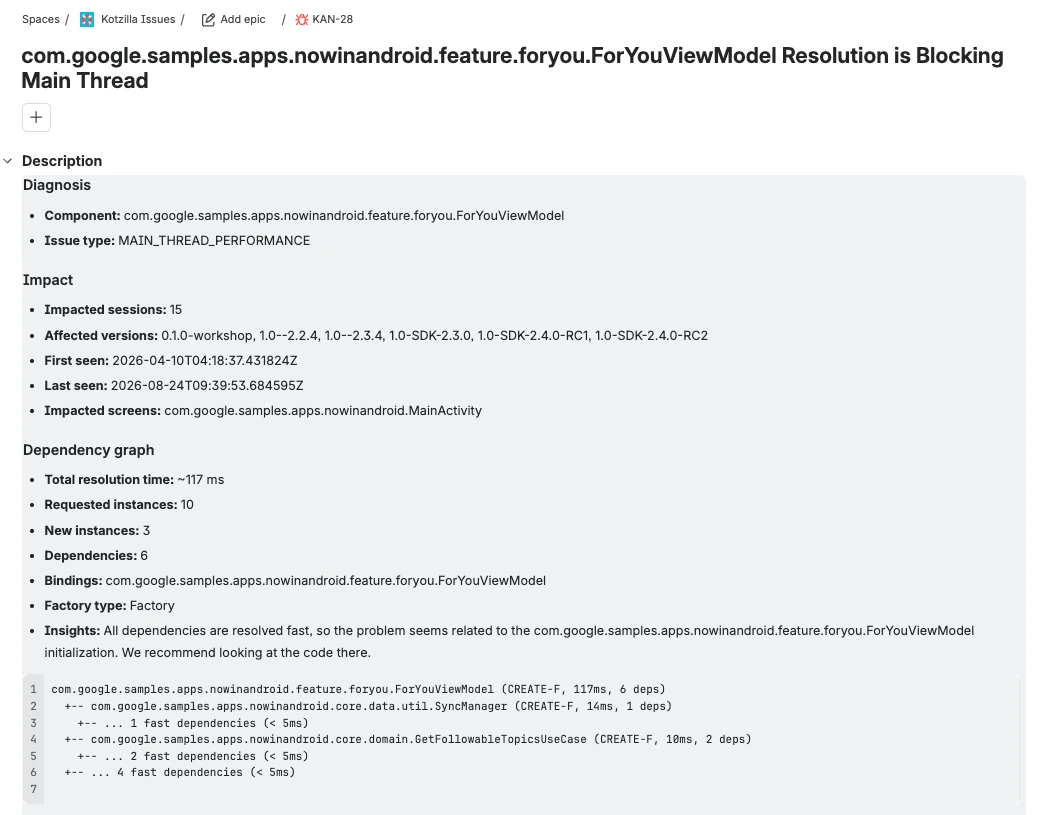
The ticket is not a title and a link. Its body carries the context Kotzilla captured for the issue:
- the diagnosis and root cause, with the dependency graph and resolution timings;
- the impacted sessions, the affected versions, and the impacted screens;
- a direct link back to the Kotzilla issue;
- a ready-to-run prompt for the Kotzilla MCP Server (
get_issue_contextandget_fix_guidance).
So whoever picks up the ticket, or their AI coding assistant, goes straight from the ticket to the fix with the real runtime context.

Follow the ticket from the Console
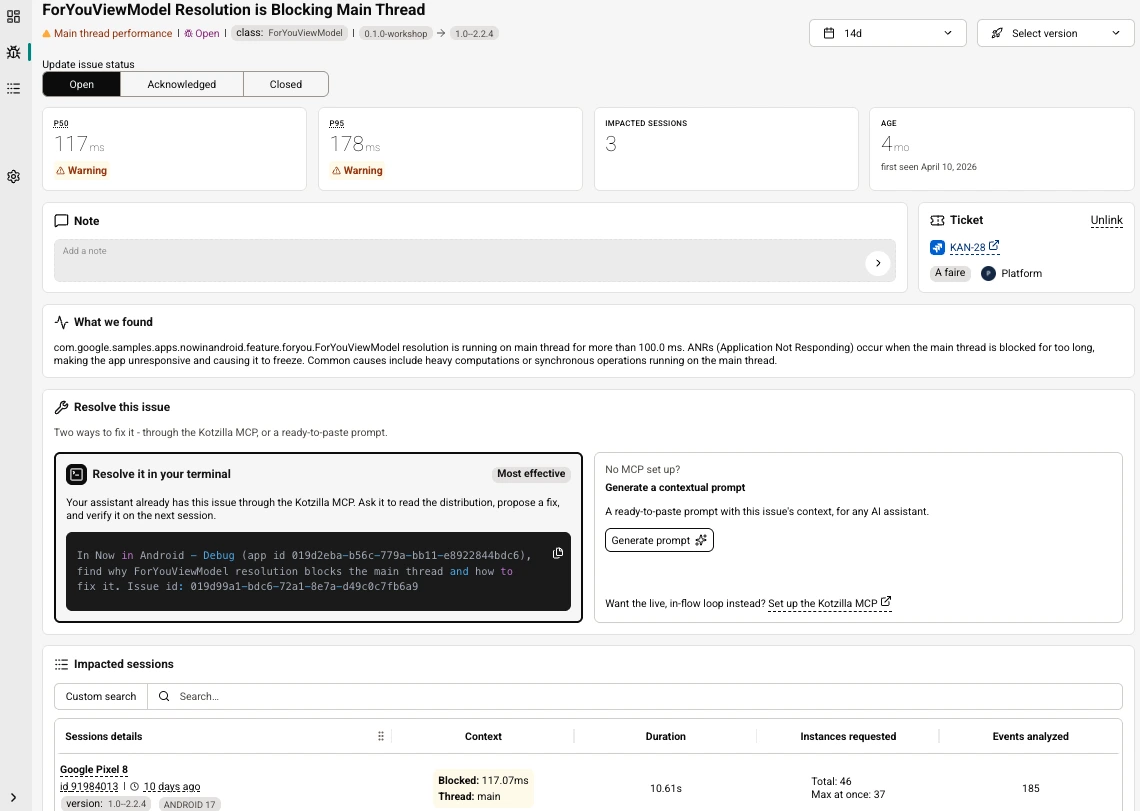
Once an issue has a ticket, the issue detail and the issues list show:
- the ticket key as a deep link that opens the ticket in Jira;
- the status, as a pill that reflects the ticket's real status in Jira;
- the assignee, with avatar and name.
Status and assignee are refreshed when you open the issue, and mirrored read-only. There is no control to transition the status, reassign, or delete the ticket from Kotzilla, those actions belong in Jira.
Link or unlink an existing ticket
If a ticket already exists, link it to an issue by pasting the ticket key or its full URL. Kotzilla resolves it and shows a preview (key, title, status) before you confirm.
Unlinking removes the link inside Kotzilla only. It never deletes or changes the ticket in Jira.
When a connection needs to be renewed
If Jira access is revoked, the connection enters a reconnection required state. The Console flags it on the integration card and mutes the affected ticket cards, and their status stops syncing until an admin reconnects. An organization admin sees a Reconnect action; other roles are told to ask an admin.
Who can connect and configure
Connecting or disconnecting Jira, setting the default project, and per-app overrides are reserved to organization admins. Other roles see the connection status and the tickets, without the configuration actions.
Providers
Jira is available today. Linear support is planned next, and the integration is provider-agnostic, so the create, follow, link and unlink flows will work the same way across providers.