SDK setup for CMP apps
This guide shows the steps to set up the Kotzilla SDK in your CMP app.
This guide assumes your app uses Koin. For Hilt, Metro, Dagger, or manual DI, see Setup with Hilt, Metro, or manual DI.
Before starting, your application must be registered on the Kotzilla Platform:
- Using the Koin IDE Plugin inside Android Studio or IntelliJ IDEA, or
- Via the Kotzilla Console for a web-based onboarding experience.
Once your app is registered and the type is selected, follow the steps below to integrate the SDK, capture analytics, and start debugging and monitoring your app.
Step 1 - Setup Kotzilla SDK (CMP)
1.1 Kotzilla project configuration file
Download the kotzilla.json configuration file for your ComposeApp module and place it in the module directory:
Module (ComposeApp module) Gradle file: <project>/<ComposeApp-module>
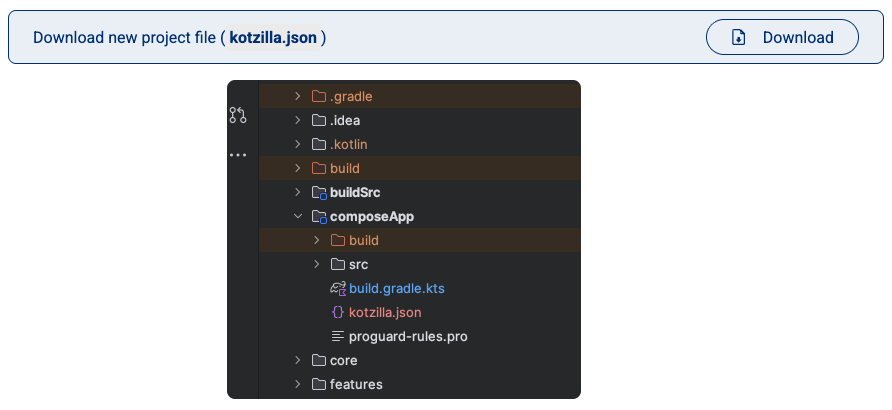
This file contains your API key, version, and SDK configuration for shared code.
For CMP projects, open the downloaded kotzilla.json and add "isDefault": true to the key entry. See Using the isDefault property for details.
1.2 Set up the SDK
The instructions below use Version Catalog configuration by default.
If your project uses the legacy Gradle setup, please check the documentation here for specific instructions.
Kotzilla SDK is available on both Maven Central and the Kotzilla public repository. More information on how to configure access to the Kotzilla repository is available here
Add the following lines to your libs.versions.toml file:
[versions]
kotzilla = "3.0.0" // Check the latest version available below

[libraries]
kotzilla-sdk-compose = { group = "io.kotzilla", name = "kotzilla-sdk-compose", version.ref = "kotzilla" }

[plugins]
kotzilla = { id = "io.kotzilla.kotzilla-plugin", version.ref = "kotzilla" }
The latest version of the kotzilla-sdk is:

Set up the Kotzilla Plugin in your project root-level Gradle file (<project>/build.gradle.kts):
plugins {
    alias(libs.plugins.kotzilla) apply true
}
In your ComposeApp module Gradle file (<project>/<ComposeApp-module>/build.gradle.kts), add:
plugins {
    alias(libs.plugins.kotzilla)
}

kotzilla {
    versionName = "1.0.0" // Your app version
}
If your Android application is a separate module from the one that owns kotzilla.json, the plugin's root-level apply already covers it, so crashes from minified release builds deobfuscate. See Mapping files.
The Compose SDK dependency is automatically added to commonMain. No manual implementation line needed.
If you prefer manual control: kotzilla { autoAddDependencies = false } then add:
commonMain.dependencies {
    implementation(libs.kotzilla.sdk.compose)
}
Compose navigation instrumentation is enabled by default. It works with Navigation 2, and with Navigation 3 screens declared as entryProvider { entry<Key> { } }.
For a screen that is not a Navigation 2/3 destination, use @TrackScreen. See Track Compose screens outside navigation.
The kotzilla {} block supports more options (composeInstrumentation, autoAddDependencies, uploadMappingFile, and others). See Kotzilla Gradle plugin configuration for the full reference.
1.3 Supported Platforms
The Kotzilla SDK supports these Compose Multiplatform targets:
| Platform | Target | Status | Notes |
|---|---|---|---|
| Android | androidTarget() | Stable | Full crash reporting with mapping file support |
| iOS | iosArm64(), iosX64(), iosSimulatorArm64() | Stable | dSYM setup required for crash symbolication |
| Desktop (JVM) | jvm() | Stable | Crash reporting works; no mapping file support yet |
| JS Browser | js(IR) { browser() } | Stable | Crash reporting works; no source map support yet |
| JS Node | js(IR) { nodejs() } | Stable | Crash reporting works; no source map support yet |
| WASM Browser | wasmJs { browser() } | Stable | Crash reporting works; no source map support yet |
| WASM Node | wasmJs { nodejs() } | Stable | Crash reporting works; no source map support yet |
For JVM, JS, and WASM: crash reporting captures exceptions, but minified/obfuscated stack traces are not yet de-obfuscated. Feedback helps prioritize.
For iOS framework configuration and crash reporting setup (dSYM symbolication, Xcode build phase script), see the KMP setup guide. The same steps apply to CMP projects.
1.4 Sync Gradle
Sync your project in Android Studio or IntelliJ IDEA to apply the changes.
Builds print the Kotzilla report for the selected app version. By default a FAIL status does not block the build (the report is informational). To turn it into a hard build gate, set kotzilla { skipBuildReportFailure = false }, or override it per build from CI/CD with -Pkotzilla.skipBuildReportFailure=false. See Kotzilla Gradle plugin configuration for details.
Step 2 - Start Kotzilla SDK (CMP)
Initialize the Kotzilla SDK in your ComposeApp module Koin configuration to capture analytics data for Compose Multiplatform apps:
import io.kotzilla.generated.monitoring

startKoin {
    // Your current Koin configuration
    ..
    // Add Kotzilla monitoring
    monitoring()
}
The monitoring() function is generated at build time by the Kotzilla Gradle plugin.
Call monitoring() last inside the startKoin { ... } block, after any modules(...) and includes(...) declarations, to avoid initialization issues.
Place startKoin { ... } in your shared code and call it once from each platform's entry point (Application.onCreate() on Android, AppDelegate on iOS, and the entry point of any other target), not from a composable.
Step 3 - Go To Dashboard
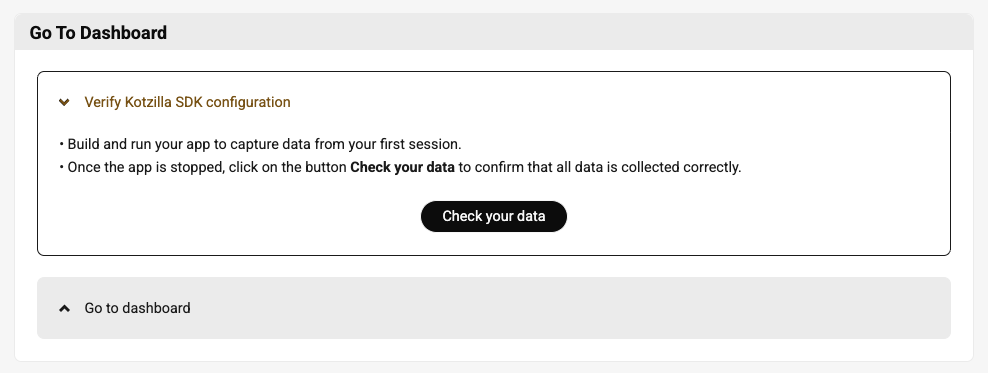
Now that the SDK is configured, you can build and run your app to start capturing data from a first user session.
Once you've stopped the app:
- Click Check your data to confirm everything is being collected correctly.
- Then click Go to Dashboard to view your app’s performance and configuration insights.
Questions or issues during setup? Contact us. We are here to help!
Have you tried the Kotzilla MCP Server? It can guide your setup and analyze issues directly from your AI coding assistant.